Getting started
Show me around Didyma
Follow the complete workflow from creating your first client to finalizing a financial statement.
Last verified:
Didyma brings client records, source documents, financial data, review work, and final reporting into one workflow. The numbered labels in the screenshots point to the controls to use at each stage.
Before you start
For direct imports, configure the relevant integration: Abacus at organization and client level, Bexio per client, and M-Files for document storage and customer import. Available sources depend on enabled features.
You can still complete the workflow with file uploads when no accounting integration is connected.
1. Create a client
Open Clients, then select Create Client. Enter at least the client name. For a Swiss business, type three or more characters to search Zefix and select the matching active company. Didyma fills the available registry details for you; review them before creating the client.
You can also enter the client manually. Add what you know so Didyma can work more accurately, especially related companies, then choose whether the client is visible to All members or a Limited set of users. Select Create Client when you are ready.
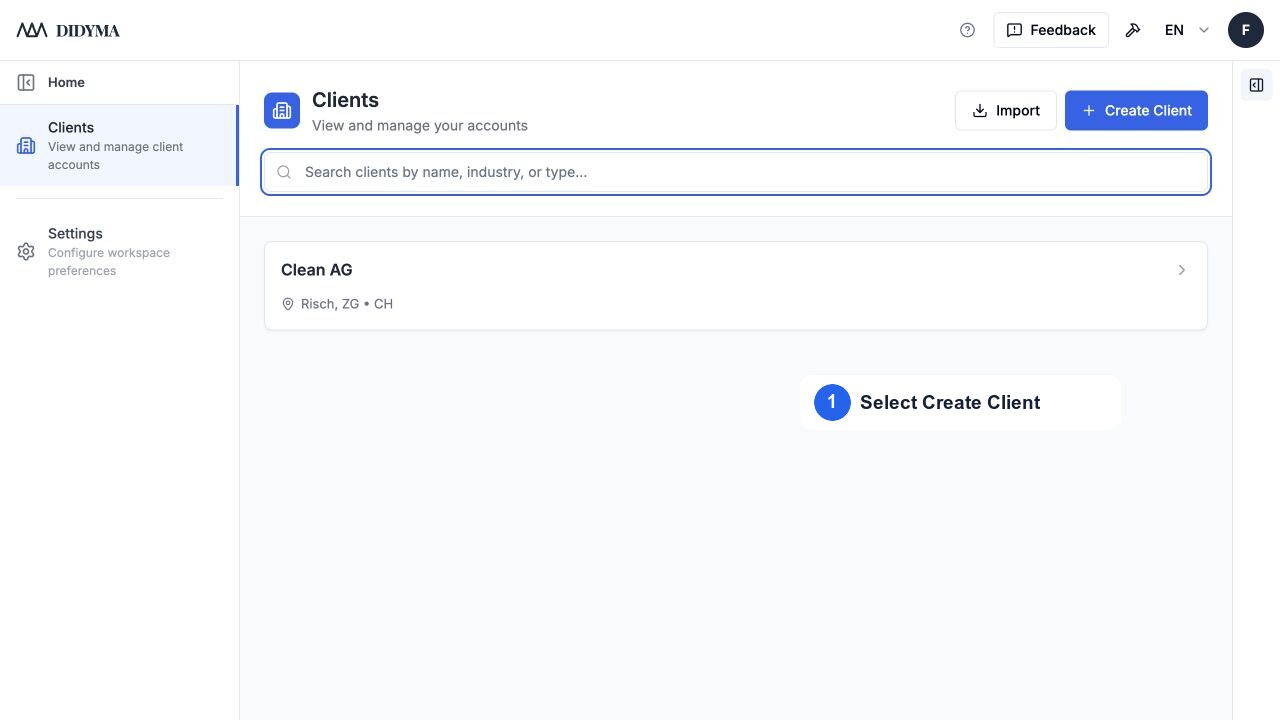
Screenshot: Open Clients and use Create Client in the upper-right corner.
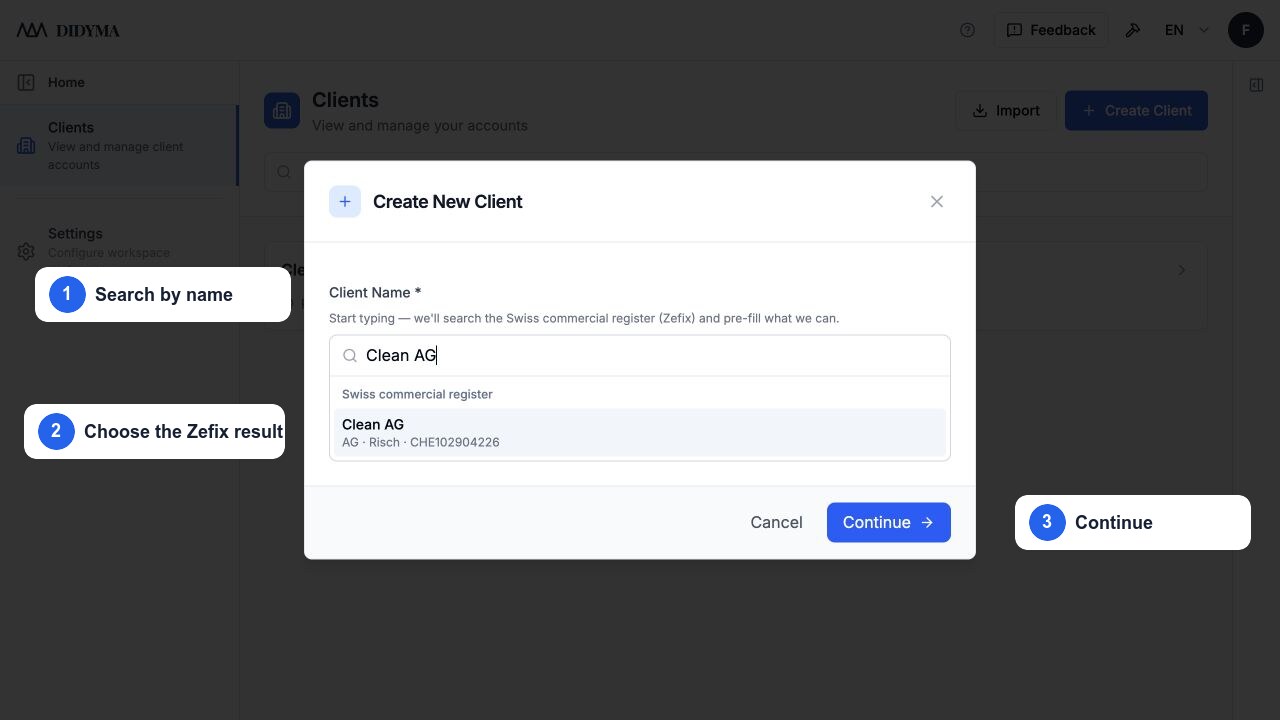
Screenshot: Select a Zefix result to prefill the available company information.
For every option, see Add a client and How the Zefix integration works.
2. Add the source documents
Open the client and go to Documents. Open Actions and choose Upload Files or Upload Folder. You can also drag files or entire folders into the workspace.
Upload the current and prior year's supporting documents, such as bank statements, receipts, other evidence, the prior-year financial statement, and general-meeting minutes. Didyma can extract figures and other information from these documents to check balances and prepare workpapers. Files in the workspace can also be reused later as checklist evidence and in the compliance pack.
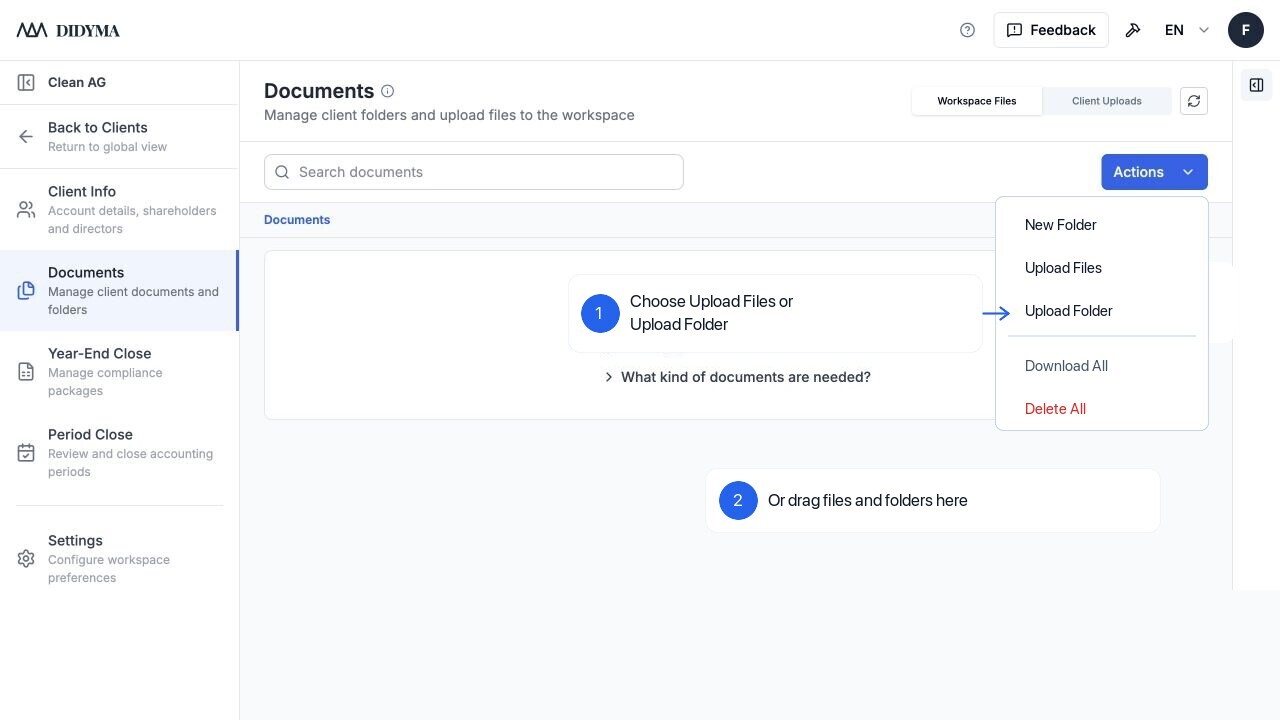
Screenshot: Open Actions to upload files or a folder, or drag them into the Documents workspace.
Read Upload and organize documents for folder uploads, duplicate-file choices, M-Files behavior, and client-uploaded files.
3. Create the financial statement
Open Year-End Close for the client and select New Close. If the workspace has no supporting documents, Didyma reminds you to upload them. Choose Go to Documents to add them, or Continue Anyway when you intentionally want to proceed without supporting evidence.
In Start year-end close, set the Financial year, Label, Reporting date, and Start date. All fields are visible immediately; edit the dates directly for a long or short period.
If a compatible finalized statement exists ending before the new period and rollover is enabled for your organization, you can also choose to roll forward prior-close data. Always review rolled-forward information in the new period.
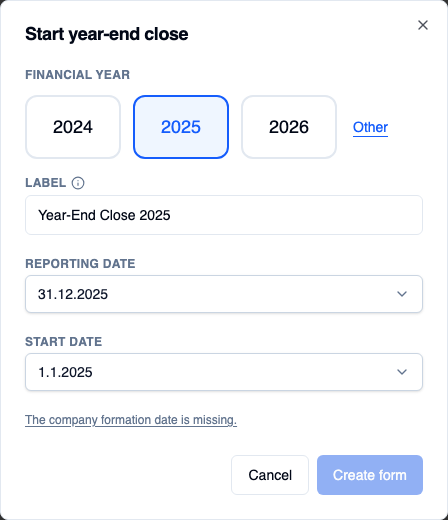
Screenshot: The current creation dialog shows Financial year, Reporting date, and Start date directly.
For field-by-field guidance, see Create a financial statement and Use a prior-year rollover.
4. Import the accounting data
Start at Import. Import the trial balance, income statement, and booking data from Abacus, Bexio, or another ERP. If Abacus or Bexio is connected, select it to fetch the data directly. Otherwise, use File import or Other sources to upload exports from the accounting system.
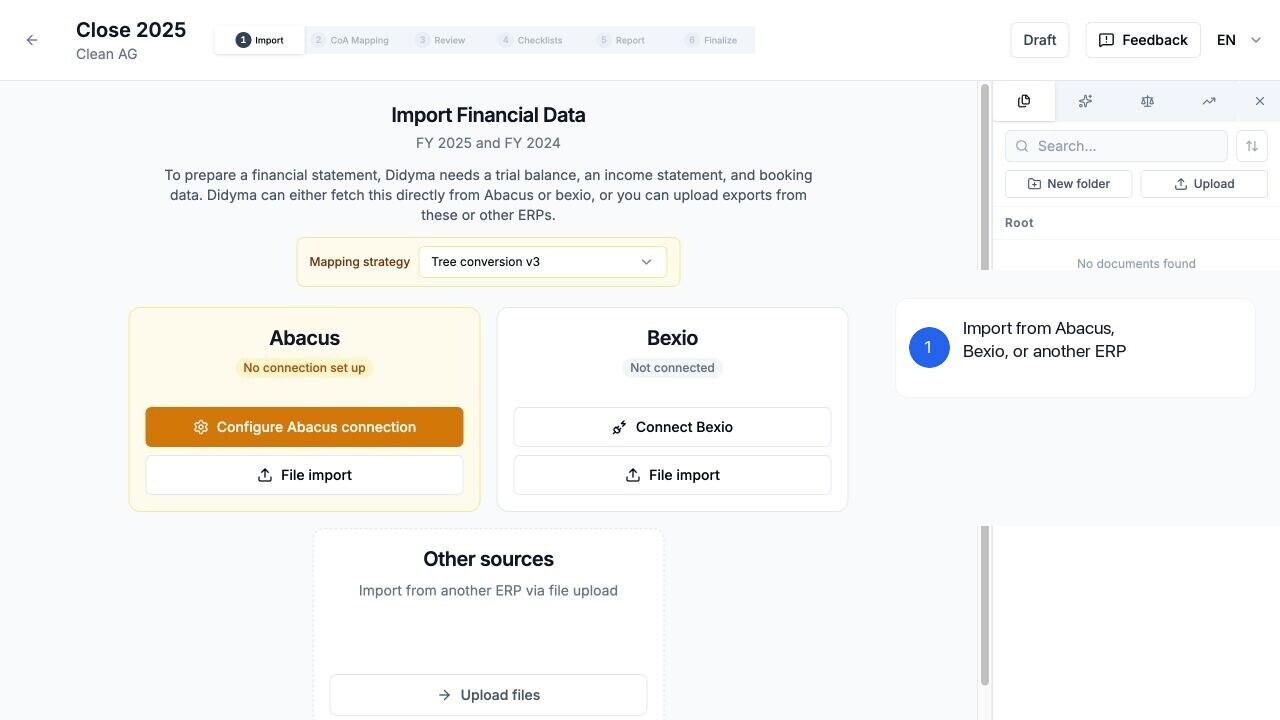
Screenshot: Import directly from Abacus or Bexio, or upload files exported from another ERP.
Didyma works with both the current and prior period so you can review comparative figures. The exact files depend on the source; follow Import financial data before exporting files from the accounting system.
5. Work through the statement
After importing the accounting data, follow the workflow steps from left to right. Verification may also be shown; the statement-only workflow omits Finalize.
The steps are:
- Import the accounting data.
- Complete CoA Mapping to map source accounts to the Swiss SME chart of accounts.
- Use Review to assess the financial statement, materiality, and comments.
- Complete the Checklists and attach the necessary evidence.
- Review the Closing meeting presentation and comments.
- Generate and edit the Report.
- Build the compliance pack and Finalize the statement for a complete close.
Understand the statement steps explains what each one is for.
6. Finalize only after review
Generate the report and review the final numbers, disclosures, checklist status, and supporting evidence. In Finalize, create and inspect the draft compliance pack before selecting Finalize Statement.
Finalization locks the statement against further editing. If a change is needed later, use Clone from the form list to create a separate editable copy while preserving the finalized version. See Finalize a statement and build the compliance pack.