Getting started
Use the navigation and sidebars
Find your way through the app and use documents, AI Copilot, account balances, and P/L alongside your work.
Last verified:
The available panels depend on your workspace, permissions, and enabled features. A panel is a view of your work.
App and client navigation
Use the app navigation to open your available workspaces, including Clients and Settings. Inside a client, choose Client Info, Documents, or Year-End Close. Always check the client name before uploading or editing. In the focused statement view, use the workflow steps across the top; close that view to return to the surrounding workspace.
Use Collapse sidebar or Expand sidebar to switch between icons and full labels. Back to Clients returns from one client to the global list. Available navigation items include:
| Area | Purpose |
|---|---|
| Clients | Find and open a client. |
| Tasks and Cases | Track work and cases across the organization. |
| Timesheets and Billing | Review logged work and manage invoices. |
| Inbox and Management | Review client conversations and the service pipeline. |
| Client Info, Services, and Activity | Maintain client details, services, and activity. |
| Documents | Organize the client’s files. |
| Year-End Close / Financial statement | Open the client’s configured annual workflow. |
| Period Close | Review and close accounting periods, when enabled for a closing client. |
| Xero Workspaces | Open Accounts, Bank Transactions, Contacts, or Journals when Xero is enabled, connected, and linked to the client. |
| Settings | Manage the account, organization, team, and integrations permitted by your role. |
Documents sidebar
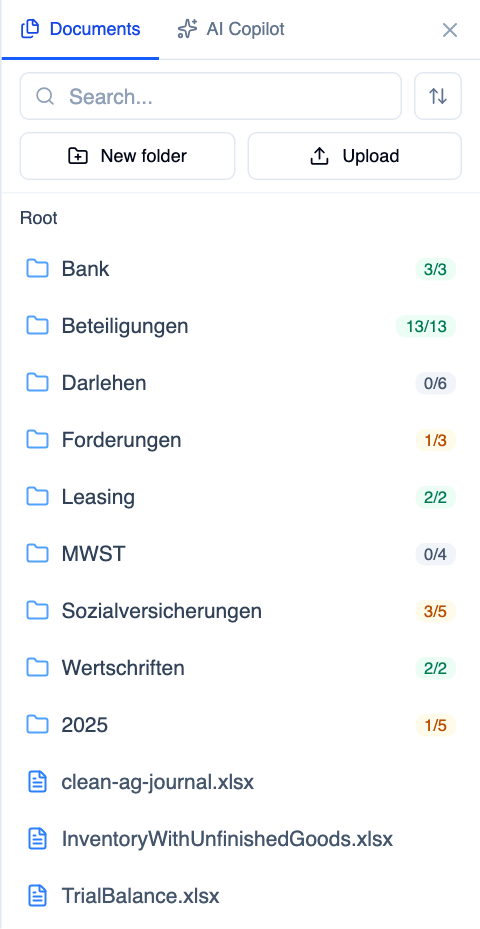
Open Documents from the right-hand icon rail. Browse folders, search documents, sort by title or date, preview files, create folders, or upload files without leaving the statement. Use the available document picker or attachment action to add a file to an import or check; merely opening a preview does not attach it.
Usage indicators help identify documents already used by checks. Review the destination when moving or uploading files. M-Files metadata and folder limitations still apply. See Upload and organize documents.
AI Copilot sidebar
Choose AI Copilot to ask for help in the current workspace. Describe the client, period, and question clearly, and inspect the referenced documents and proposed changes. A conversational answer is not evidence that a ledger entry has been posted. Confirm the result in the relevant check or integration; see Approve and post bookings.
The app also offers a copilot panel outside the statement. Its context depends on the workspace you have open, so do not assume it is looking at the same client or period as another tab.
Balance sheet sidebar
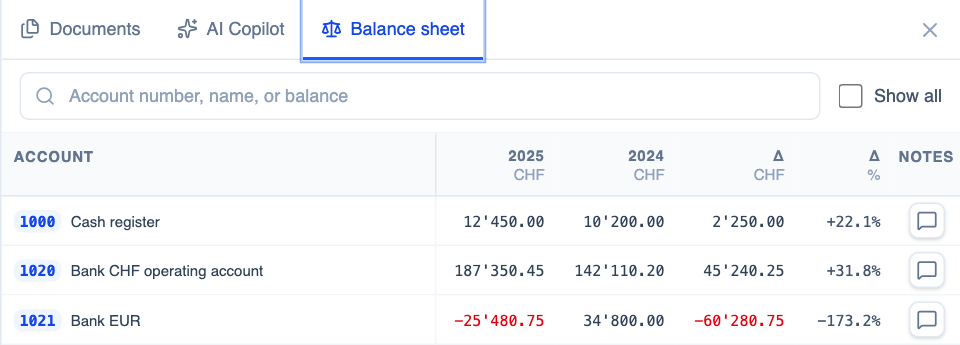
Choose Balance sheet to inspect account numbers, names, current and comparative amounts, absolute and percentage movements, and review notes. Search by account number, name, or balance. During a check, the list can be narrowed to relevant accounts; use Show all to broaden it.
Select an account’s transaction action to inspect its entries. An empty transaction view can mean journal data was not imported; it does not prove there was no activity. Distinguish missing comparative data from a genuine zero balance.
P/L sidebar
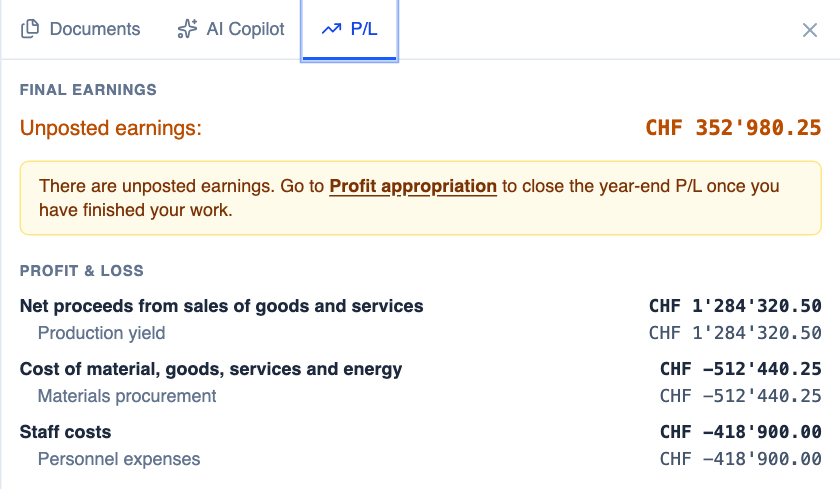
Choose P/L to see final earnings and the profit-and-loss breakdown. The panel distinguishes posted, unposted, and calculated amounts. If the panel is narrow, choose Show P/L to expand it. A notice can take you to Profit appropriation when earnings or losses remain unposted.
These figures help reconcile the close. They do not replace checking the accounting system’s posting result or the approved profit appropriation.
Checklist and report navigation
In Checklists, use the check list to open the applicable topic and inspect its status, evidence, and notes. See Resolve checklist issues.
In Report, Design, Template, and Editor have their own editing controls. Section lists navigate the document; settings panels change the selected section or design. A selection is not an approval. See Customize and regenerate a report.
In Closing meeting, the table of contents opens from the bottom navigation. Search for a section to jump directly to it; this is separate from the document sidebar.
Section comments can appear in a separate panel beside the Closing meeting content. Use that panel for the explanation of the displayed section; it is separate from checklist notes and document attachments.
Resize, close, and find help
Drag the document sidebar boundary to resize it. Use Close sidebar to recover working space and the icon rail to reopen a panel. On a narrow screen, tabs may show icons instead of full labels.
In this help center, the left sidebar lists topics, On this page jumps to headings, and the previous/next links move between articles. On mobile, open Browse help topics. Search finds public articles in the selected language; the protected Abacus setup guide remains available through navigation after sign-in.